
MATCHA for quizzes
Taking an LMS quiz in MATCHA
Join your instructor’s quiz, complete it in MATCHA, and use Notepad and Sketchpad for notes and diagrams. You can use split view to keep either tool beside the quiz. Examples on this page use Brightspace; your course settings may differ.
Your instructor’s Start mode (LMS or Access code) decides which route works, so use the route your instructor gives you. By default, LMS quizzes use LMS Start mode and open from the MATCHA link in your course (entering an activity code in MATCHA will not find an LMS-mode quiz).
Select any screenshot to view it full size in a new tab.
1. Open the activity
In your course on your learning management system (LMS), open the MATCHA link for this quiz, and choose Open in MATCHA if MATCHA does not open by itself. If your browser asks whether to open MATCHA, allow it.
If your instructor chose Access code: open MATCHA, choose Start an instructor-led project on the welcome screen, enter the 10-digit Activity code and your Instructor’s last name, and choose Continue. MATCHA then asks you to sign in to your course website: use the same account you use for your LMS before it shows the Activity summary.
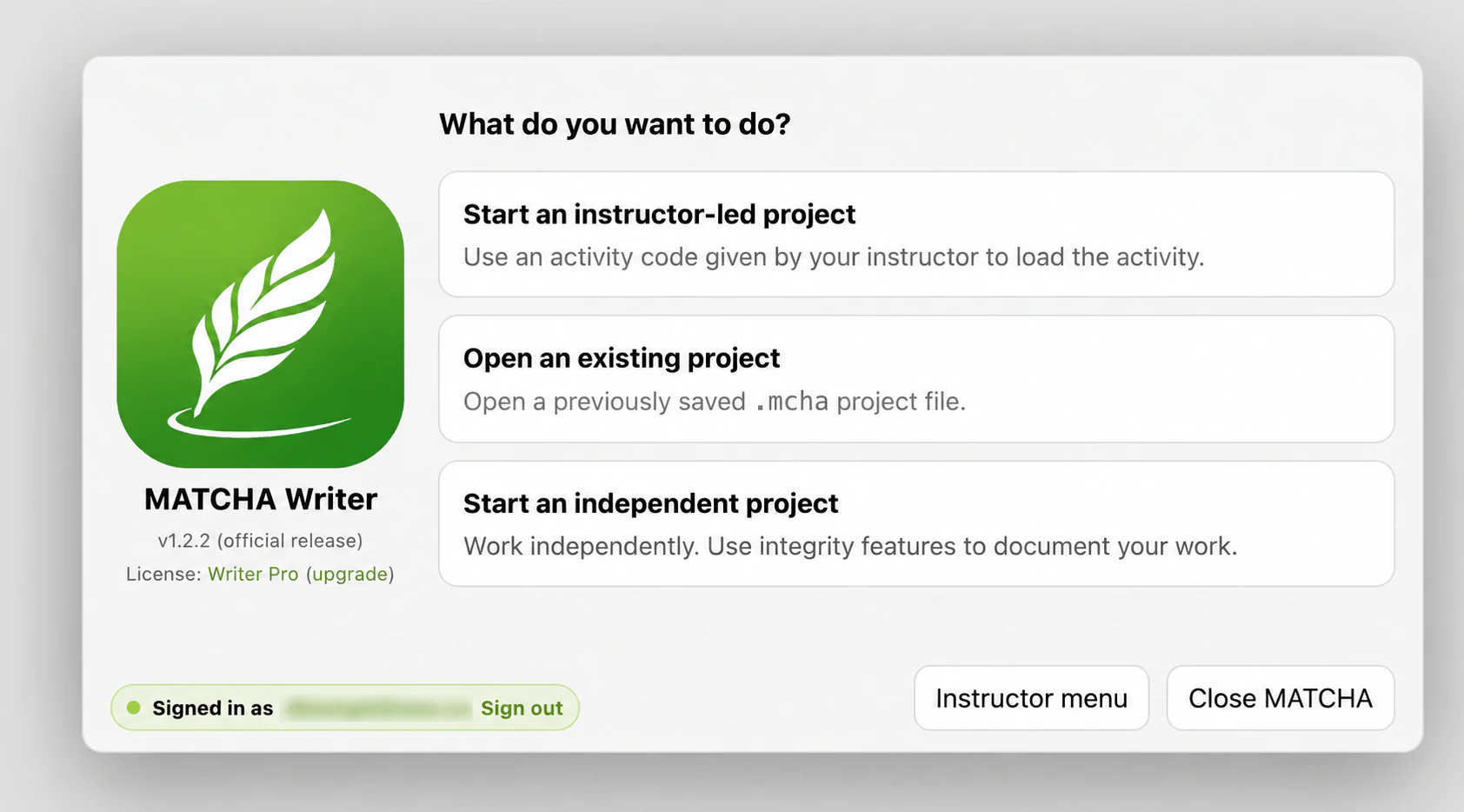
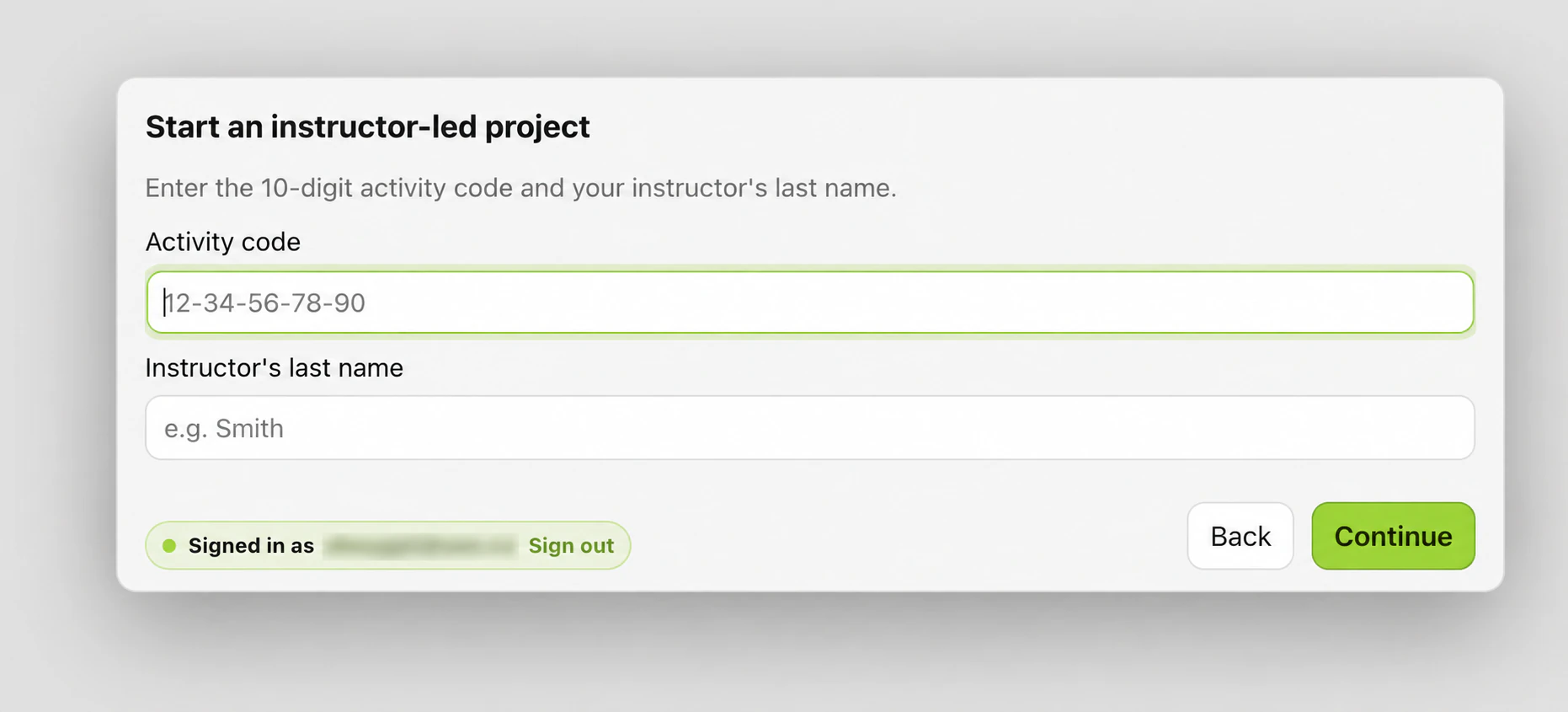
2. Review the Activity summary
Read the Activity summary, which lists the rules and the information collected, then choose Continue. Check the activity name and settings, including Sketchpad and Notepad and Clear Sketchpad and Notepad after each page; your instructor controls these settings.
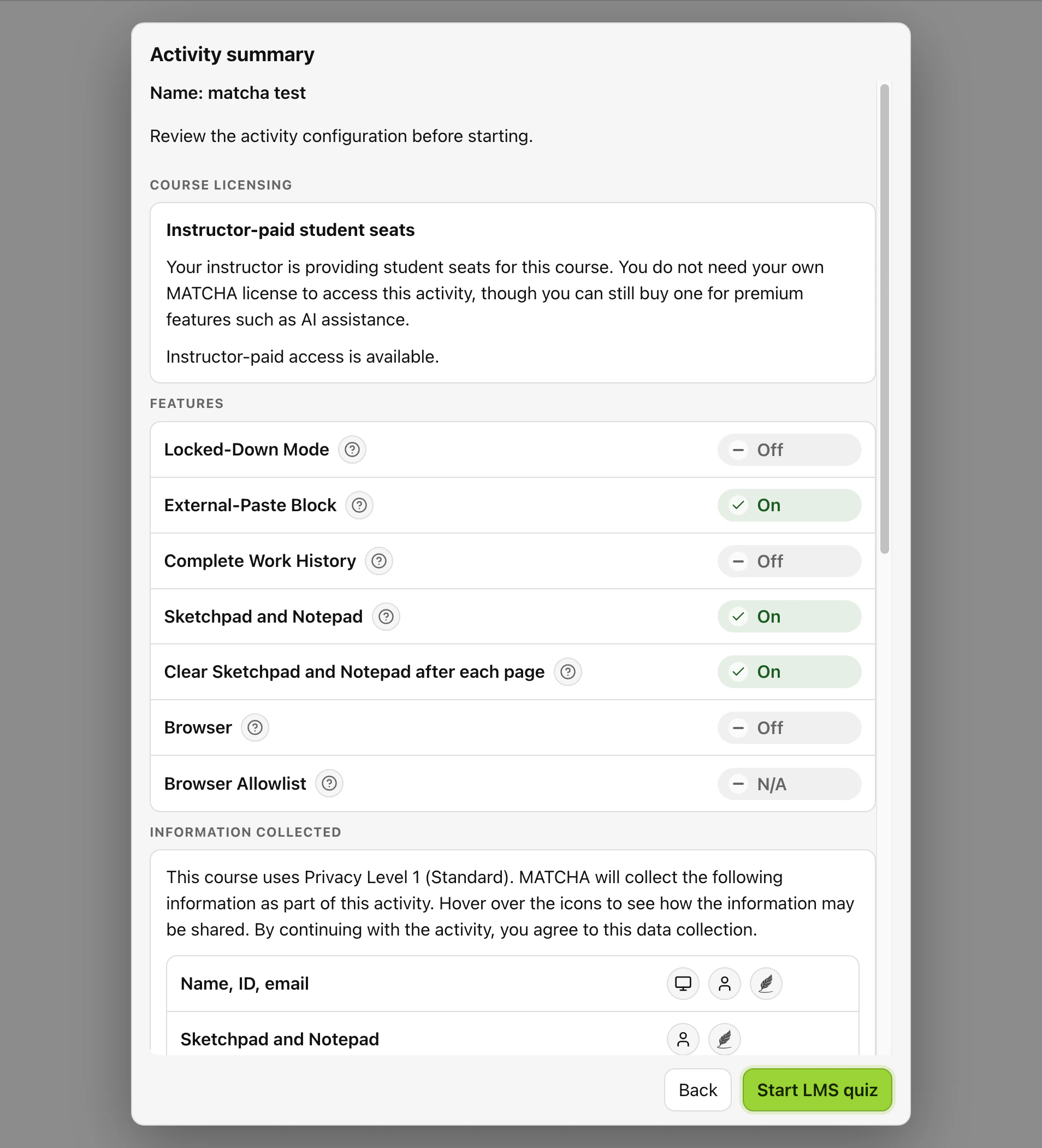
3. Complete check-in if required
When MATCHA shows Check-in required, show the QR code on your screen to your proctor and wait for them to check you in before continuing.
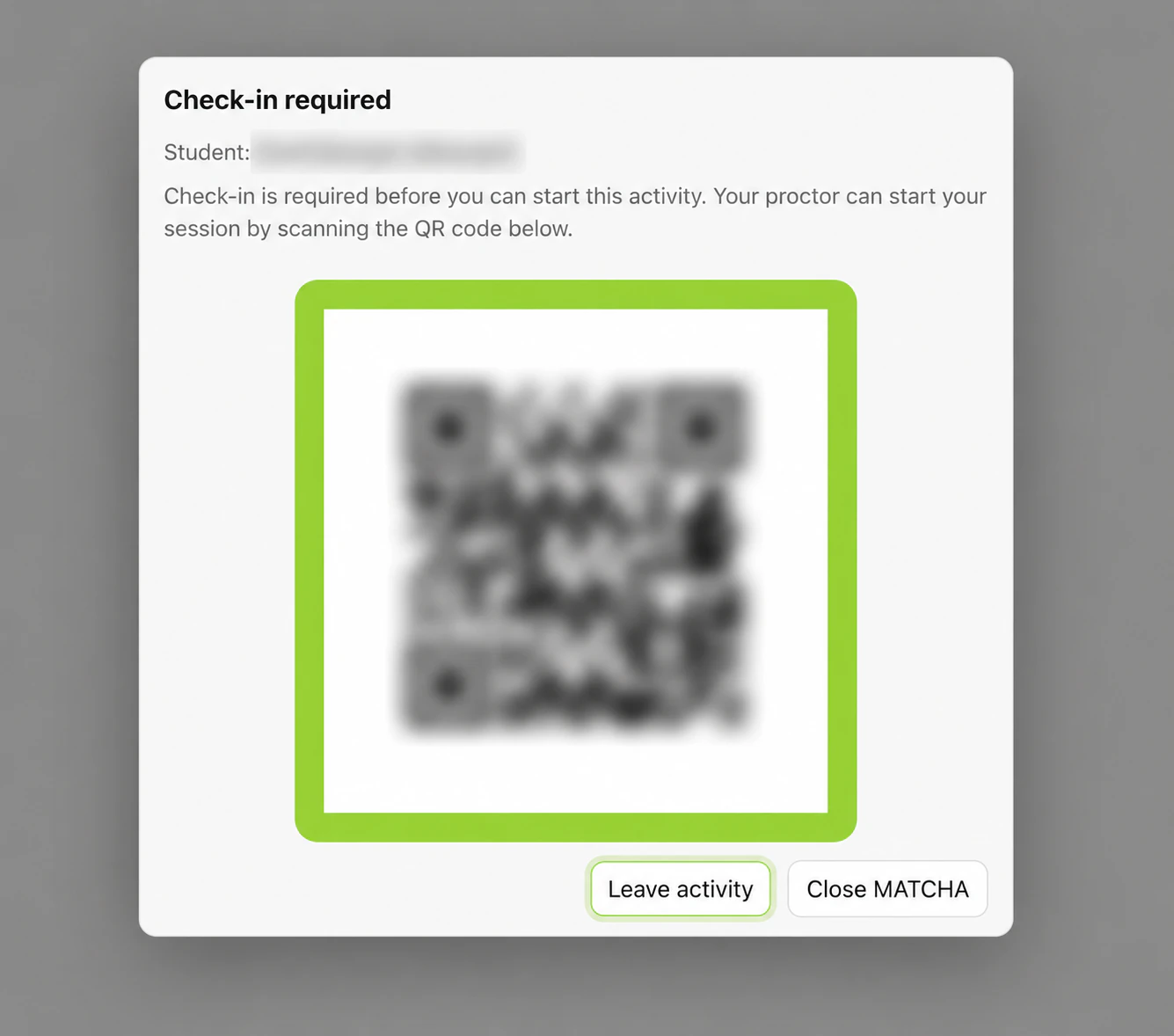
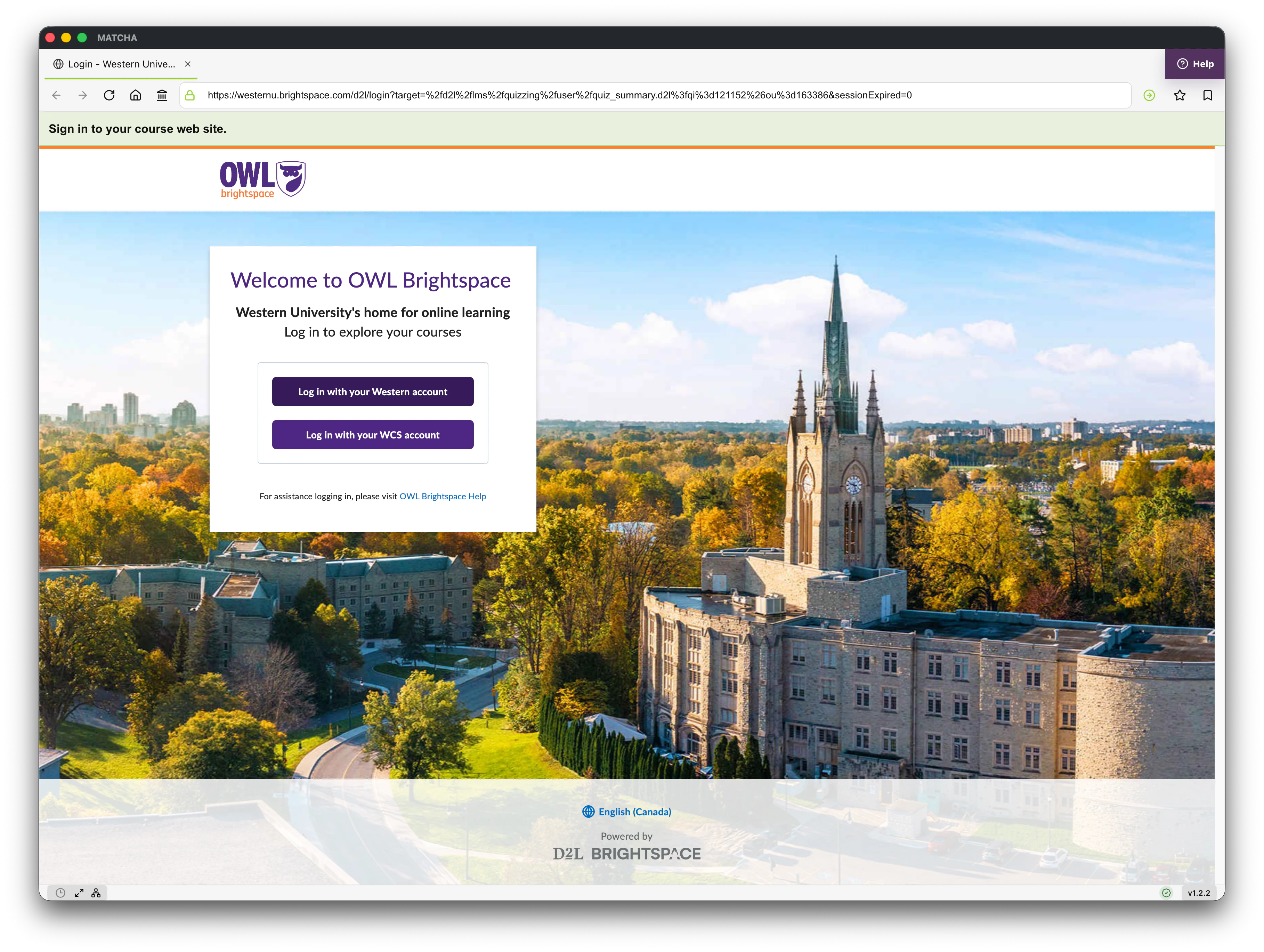
4. Sign in to your course website
When the quiz tab opens, MATCHA asks you to sign in to your course website: use the same account you use for your LMS, complete any verification prompts, and MATCHA then takes you to your quiz. (If you started with the activity code, MATCHA asks you to sign in before the Activity summary, so when the quiz tab opens, MATCHA takes you to your quiz.)
5. Read the quiz details and begin
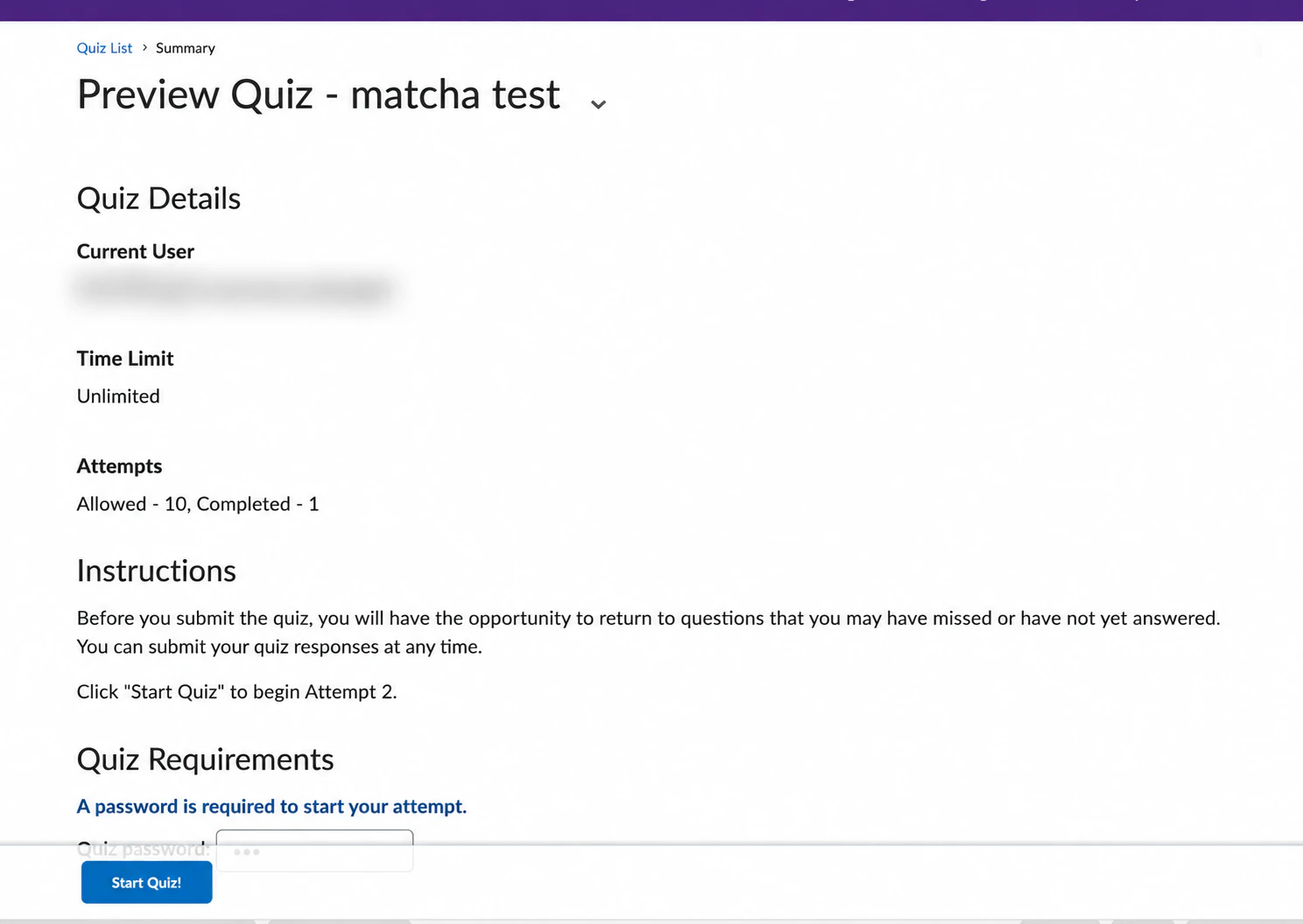
Read the quiz details in the LMS and start the quiz. Check the time limit, allowed attempts, and instructions. If it asks for a password, MATCHA fills it in when it can: if MATCHA shows an Insert code button, choose it, and otherwise enter the password your instructor or proctor gives you. Choose Start Quiz! when you are ready.
6. Work through the questions
Answer the questions in the quiz tab, which shows your LMS quiz inside MATCHA. Use the quiz’s own buttons, such as Next Page, to move between pages, and Previous Page or the page list to return when your quiz allows it.
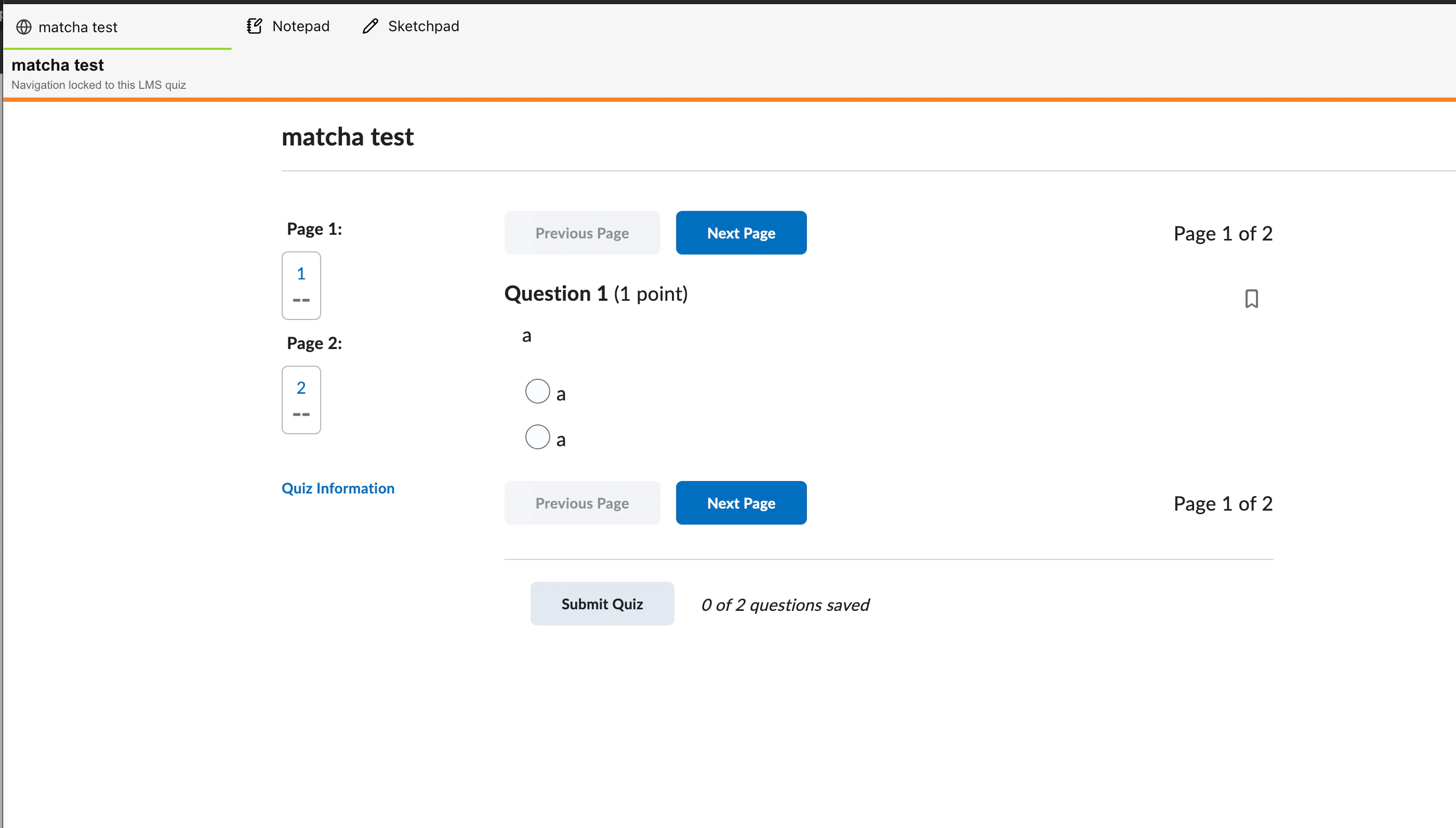
Choose Notepad for typed notes or Sketchpad for drawings. The sections below explain both tools and how to keep them beside the quiz in split view.
7. Finish your attempt
Review your answers and the LMS saved-answer indicator before submitting.
- Review your answers, then choose Submit Quiz in the quiz and follow the on-screen review and confirmation steps.
- If MATCHA asks you to check out, show your proctor the QR code: MATCHA submits your quiz when your proctor checks you out. Follow any further prompts, including Continue and Submit Quiz if requested.
- Wait for Your quiz has been submitted. before closing, then choose OK to close the project.
Take notes in Notepad
Notepad gives you a place to outline an answer, list key points, or work through a problem while taking the quiz.
Notepad contents are not submitted with your quiz answers. Enter your final response in the quiz itself.
Find and use Notepad
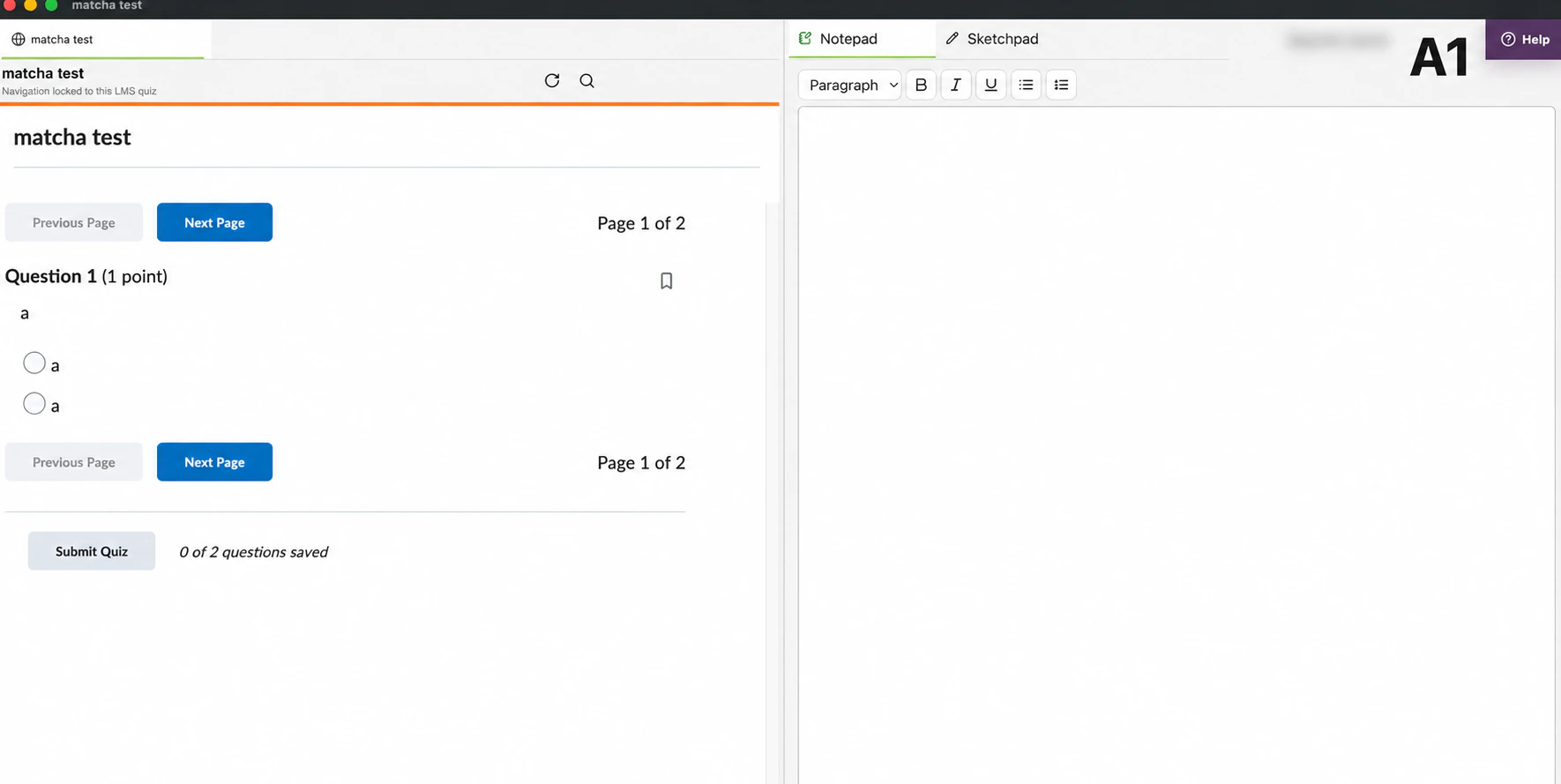
- Choose the Notepad tab at the top of MATCHA.
- Click in the white writing area and type your notes.
- Use Paragraph to choose a paragraph or heading style. Use B, I, and U for bold, italic, and underline, or the list buttons to organize your points.
- Return to the quiz tab to enter your answer. In split view, click straight into the quiz pane beside your notes.
Know when notes and drawings are cleared
Read the notice below the work area. In the activity shown here, both work areas reset after each quiz page. Finish using your notes and enter your answer before moving to another page.
If your LMS and activity settings allow you to start a new quiz session, start the quiz again using the same route your instructor’s Start mode uses (from your LMS, or with the activity code if your instructor chose Access code). Both work areas start empty in the new session. Closed quiz sessions cannot be reopened from a saved file.
Draw diagrams in Sketchpad
Sketchpad is MATCHA’s drawing scratchpad. Use it for rough calculations, diagrams, or planning how ideas connect.
Sketchpad contents are not submitted with your quiz answers. Enter your final response in the quiz itself.
Choose the Sketchpad tab at the top of MATCHA. Hover over a toolbar button to see its name, then choose a tool and work in the white canvas.
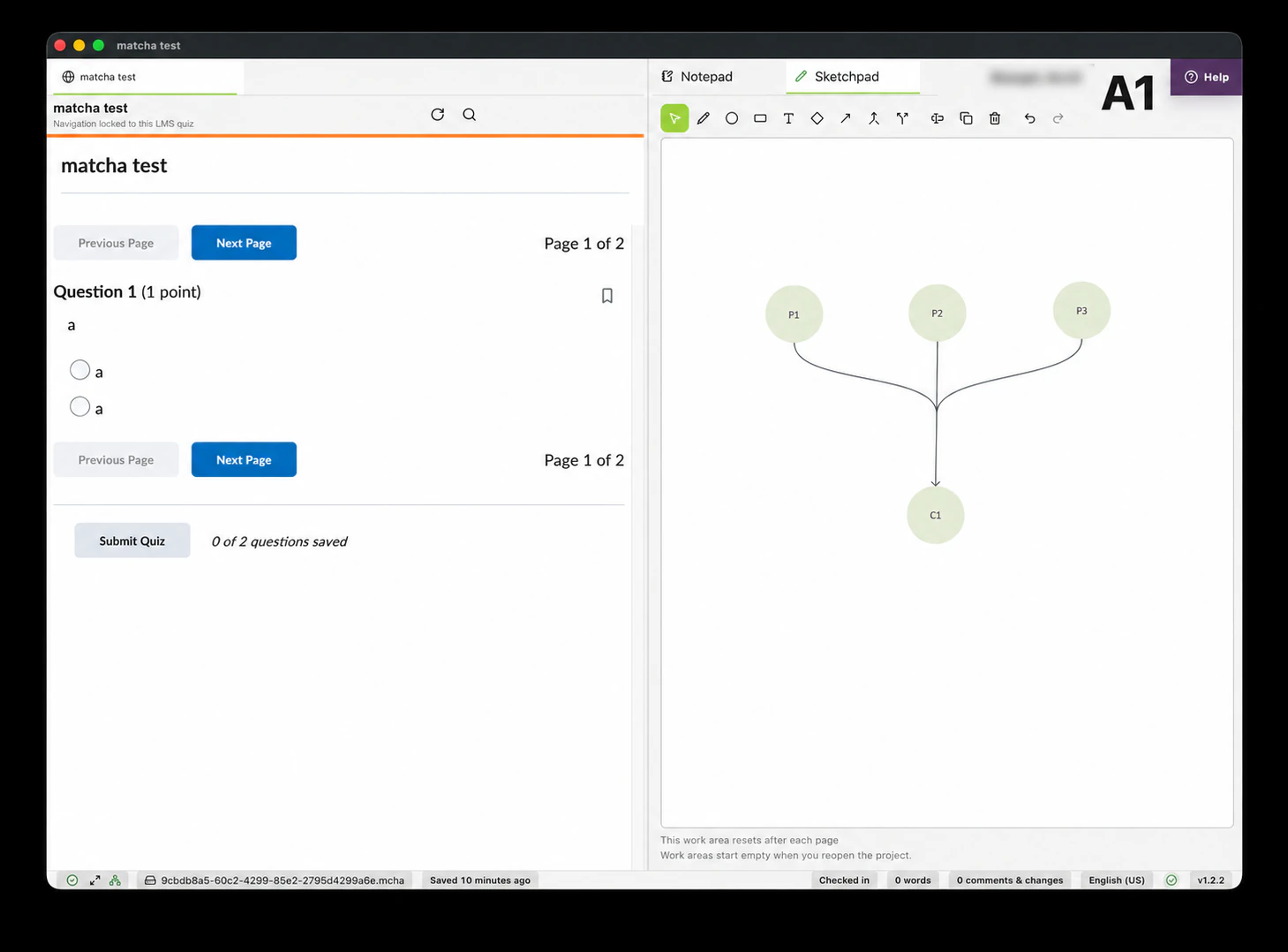
| Tool | How to use it |
|---|---|
| Pencil | Choose Pencil, then drag on the canvas to draw freehand. |
| Shapes and text | Choose Circle, Rectangle, Diamond, or Text, then click the canvas to add it. |
| Arrows | Use Connector, Merge arrow, or Split arrow to show relationships between ideas. |
| Select and edit | Use Select / move to arrange objects. Use Edit label, Duplicate, or Delete for the selected object. |
| Undo and Redo | Undo your last change or redo a change you have undone. |
The same clearing settings apply to Sketchpad and Notepad.
Use split view during a quiz
Keep the question visible while you take notes or draw. Split view places the quiz in one pane and Notepad or Sketchpad in the other.
- Open the View menu and choose Toggle split view.
- Keep the quiz in one pane and choose Notepad or Sketchpad in the other.
- Drag the divider between the panes to give the quiz or your notes more room.
- Choose View > Toggle split view again to return to a single pane.
Switch between Notepad and Sketchpad as you need them. The activity’s clearing settings still apply when you change quiz pages.