
Integrated work environment
Read, annotate, write.
Without switching apps.
Open readings, LMS pages, and library databases in MATCHA’s built-in browser, including through your university’s library proxy. Highlight and annotate PDFs, make scanned pages selectable with text recognition, and keep outlines and quotations in a separate notes pane, out of your main document.
Explore the features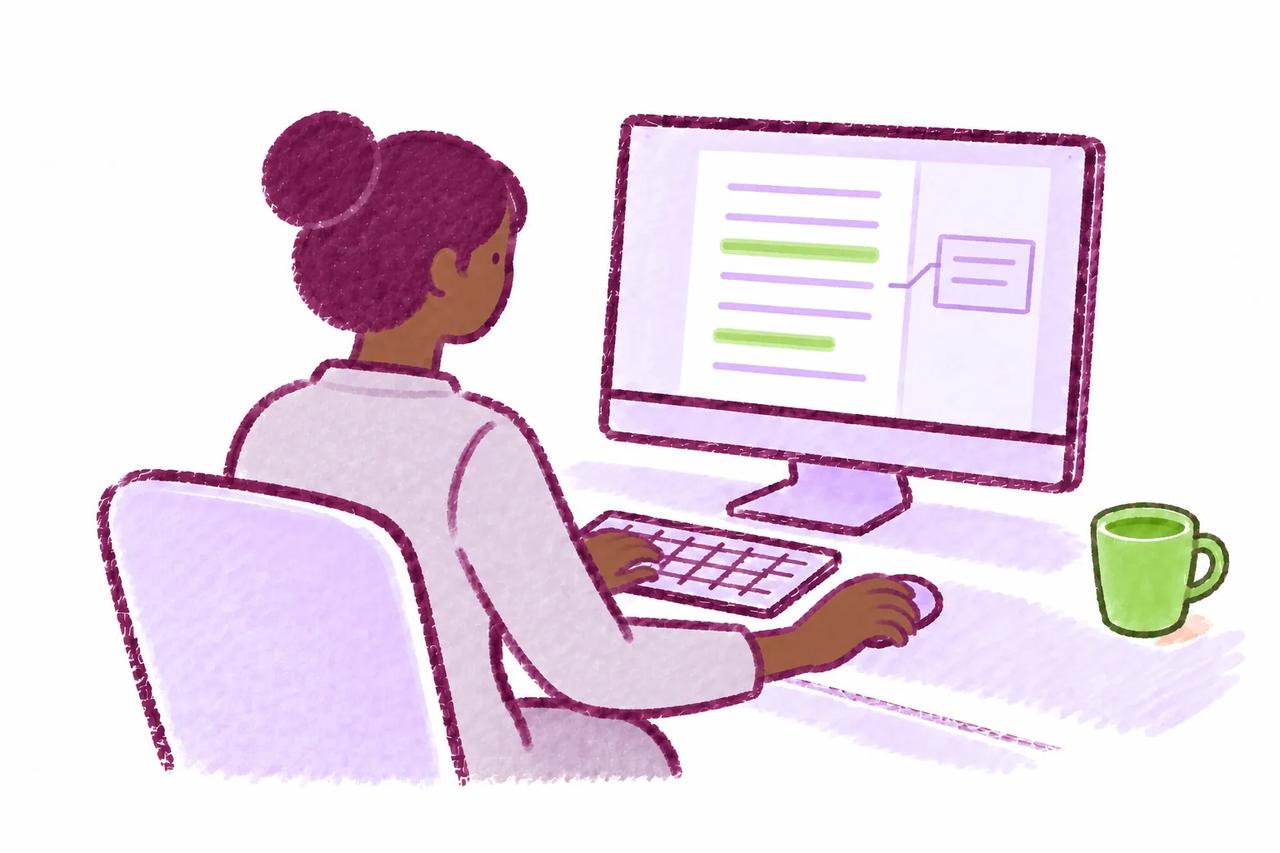
In practice
Make reading part of writing.
Open an article through your library proxy, highlight the passage you need, and attach a note beside it. Sketch the outline in the notes pane, then write the paragraph in the main document, all within MATCHA.
-
Open the material
Use the built-in browser for readings, LMS pages, and library databases, with your library access through Proxy Browsing. Text recognition adds selectable text to scanned PDF pages.
-
Annotate the source
Highlight passages and attach notes to a PDF. Notes appear beside the passage, and the browser’s history takes you back to each annotated reading.
-
Draft beside your notes
Keep outlines, quotations, and fragments in the separate notes pane, out of the main submission. Note edits are tracked just like edits in the main document.
In detail
How each feature works.
What each feature does, its options, and what it requires.

Built-In Browser
- Adds a built-in browser pane for LMS pages, readings, library databases, and other approved web resources.
- Proxy Browsing: Access academic sources through your university's library proxy inside MATCHA. Find your university or enter its library proxy scheme in App Settings, then open sources through the proxy using your library access.
- Browser configurations (including allowlists) can be shared between courses and instructors within an organization.
- MATCHA includes a default browser allowlist of common academic sources that instructors can extend or narrow for each activity.
- This feature works well with Complete Work History.

PDF Annotations
- Highlight passages and attach notes while reading PDFs inside MATCHA’s built-in browser.
- Notes appear beside the PDF, keeping your comments connected to the passage you were reading.
- Revisit your annotated readings through the browser’s history, which shows the notes and highlights associated with each reading.
- PDF annotations currently remain local to your computer when you use cloud files.

PDF Text Recognition (OCR)
- Text recognition adds selectable text to scanned PDF pages that do not already have a usable text layer.
- Set up text recognition from the PDF viewer when prompted. MATCHA checks pages and makes recognized text available over the original page.
- Use the recognized text for selection and copying while keeping the original PDF visible for reference.
- Recognized text may contain mistakes. Check quotations against the original page; the viewer lets you retry visible pages when recognition fails.
Notes
- Adds a separate notes pane so participants can outline ideas, copy quotations, or draft fragments without mixing them into the main submission.
- Note edits are tracked just like edits in the main document.