
MATCHA for essays (at home or in the lab)
Starting your essay for the first time
Use these steps to begin an essay activity set by your instructor, whether you will write at home or in a supervised lab. If you have already started the essay, reopen your saved project to continue it.
1. Open your instructor’s activity
Follow the MATCHA link in your course on your learning management system (LMS), then choose Open in MATCHA if the app does not open automatically. Allow your browser to open MATCHA if it asks. If you still need to install the app, follow the installation instructions, then return to the activity link.
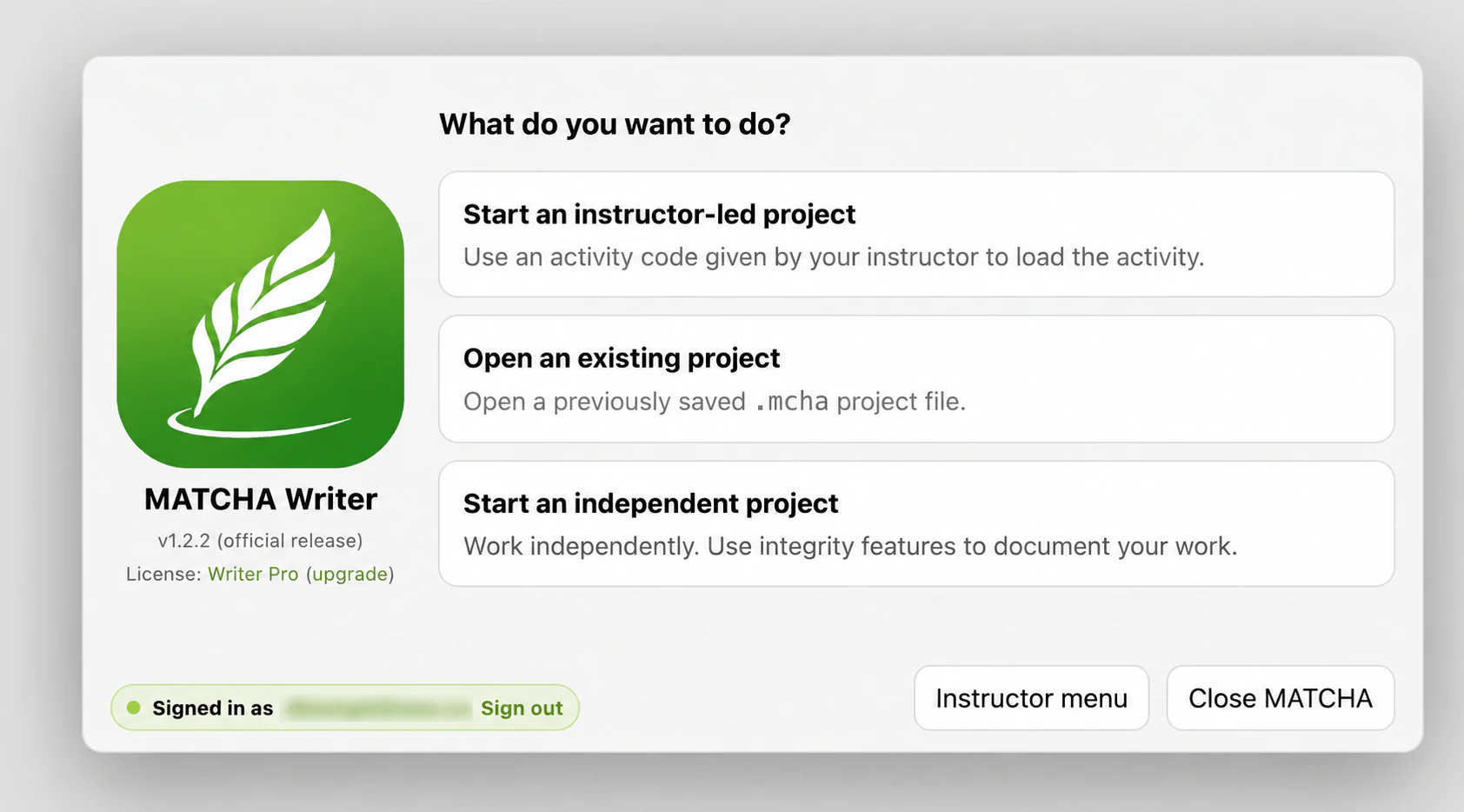
If your instructor gives you an activity code instead, open MATCHA and select Start an instructor-led project. Enter the 10-digit Activity code and your Instructor’s last name, then choose Continue.
2. Review the activity settings
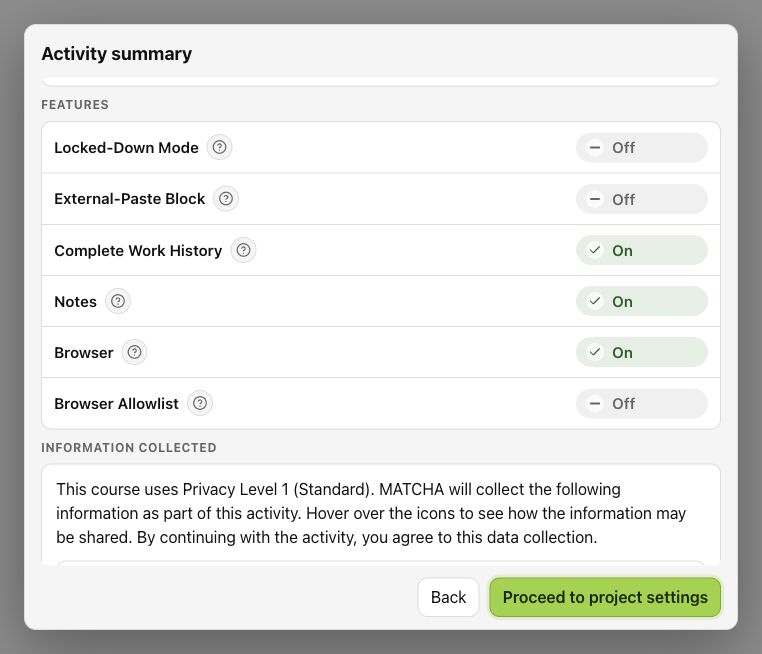
Read the Activity summary before you begin. It explains which features your instructor has enabled and what information the activity records. Check the settings for Complete Work History, the browser, copy-paste, and AI assistance so you know which tools you can use while writing.
3. Set up and save your project
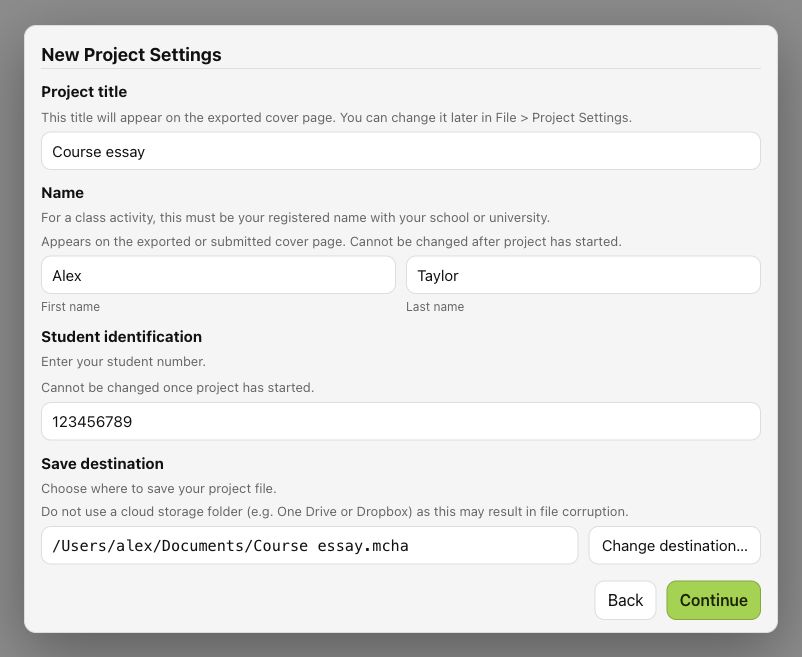
Choose Continue to project settings, then enter your essay title and enter or confirm your name and student identification. In Project Settings, choose where to save your .mcha project file. Keep track of that file: it holds your essay and work history, and you will reopen it for each later writing session.
MATCHA saves your work automatically on your computer. Choose a local folder rather than a Dropbox, OneDrive, or other cloud-synced folder, as syncing the project file while MATCHA is using it can cause file corruption.
4. Complete any preparation and check-in
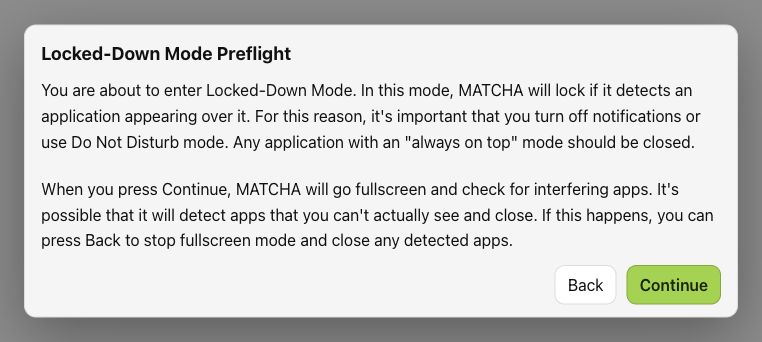
If the activity uses Locked-Down Mode, MATCHA shows a preflight dialog before you can write. Follow its instructions while MATCHA checks fullscreen mode and looks for apps or overlays that could interfere. Close any apps it asks you to close. In a supervised lab, ask your proctor about an app you need to keep open; they can approve permitted apps using the exemption code when that option is shown.
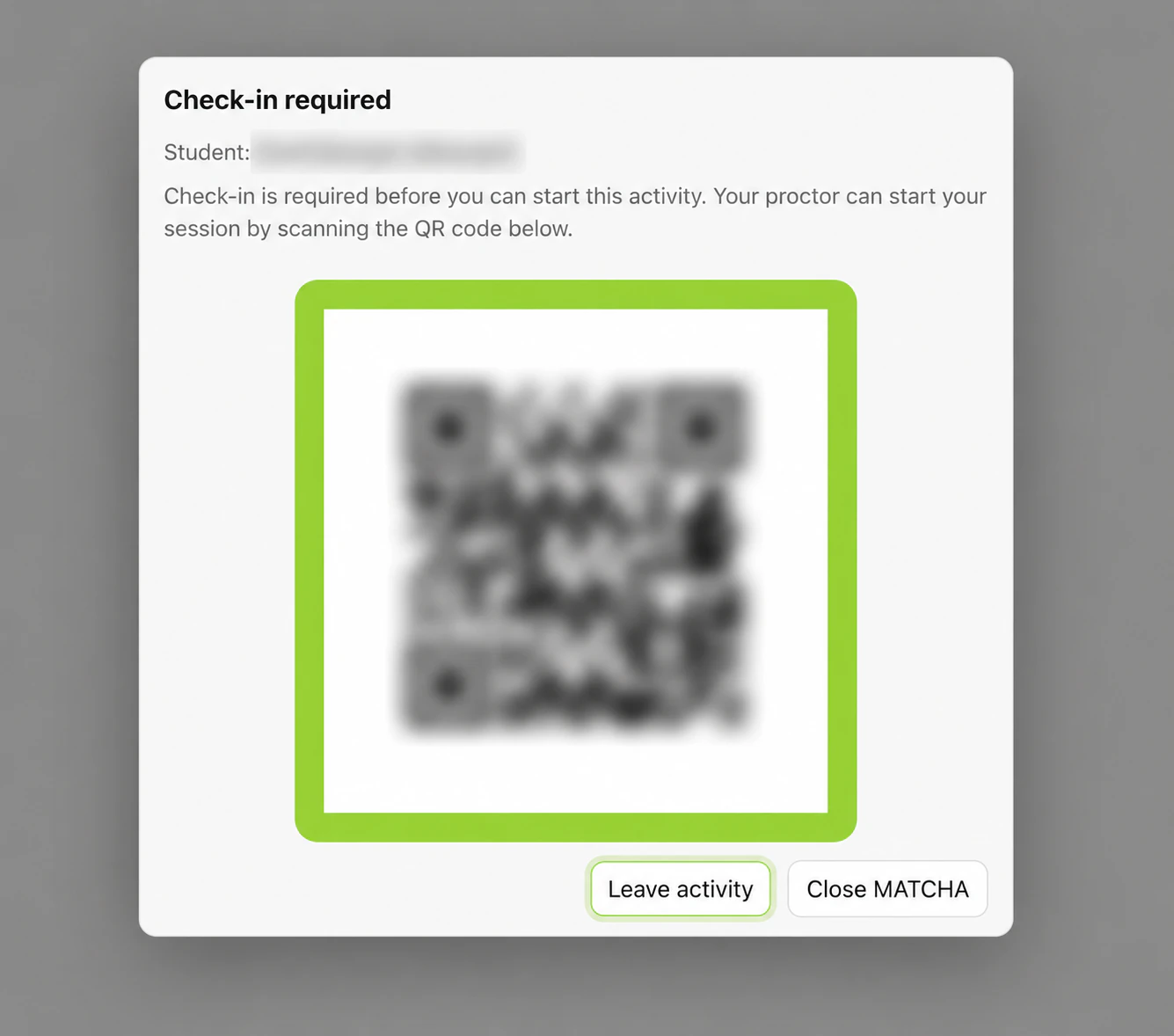
If check-in is required, show the QR code on your screen to your instructor or proctor and wait for permission to start. Otherwise, you can begin drafting once setup is complete. Follow your instructor’s rules about where and when you may work.
Continuing a saved essay or activity
To continue an essay or multi-session activity later, open MATCHA directly, select Open an existing project on the welcome screen, and choose your saved .mcha project file. The Open dialog lists Recent projects. You can use File > Open Recent.
Course/LMS links and activity codes start the activity launch process; do not use them to resume saved work. If a repeat launch offers Continue this activity?, choose Open existing file.
Activity availability, deadlines, and any required proctor check-in still apply.
Using MATCHA in supervised writing labs
Follow the essay setup instructions above for your first visit. A supervised writing lab activity may happen across multiple visits instead of one single sitting. For each later visit, reopen your saved .mcha project to continue your work.
- You may return for multiple supervised sessions instead of completing everything in one sitting.
- You must check in before each session starts.
- You must check out every time you leave.
- You may be working during scheduled room hours rather than during one fixed exam block.
- You must do your work only while physically present in the supervised room.
Using MATCHA at home
At home, MATCHA is being used for unsupervised or take-home work. In that setting, MATCHA helps build a clear record of your independent work by capturing the work process, not just the final submission.
When returning to your essay later, reopen your saved .mcha project in MATCHA.
If your instructor expects you to use MATCHA at home, do all substantive work there: drafting, revising, note-taking, and any allowed research. Do not treat MATCHA as a final-copy-only tool.
To properly connect your writing and reading, make sure to cite the exact documents you are reading in the browser. First add them to your library using the "Add to library" button. Then cite them using MATCHA's citation insertion feature (the quote button). MATCHA should also insert citations when you copy-paste from documents already in the library.
Submission and Feedback
Submitting your work
MATCHA supports two submission workflows: direct submission and manual submission (for example, through your LMS). The Activity Summary shown at the beginning of an activity tells you which workflow your instructor is using. You can also find this information in the Check out or Submission tab in the app.
When you are ready to submit, go to the Submission tab, called Check out while you are checked in, and follow the instructions there.
For manual submission, use Save .docx as... to export a certified
.docx file. Submit that file through your LMS or follow your instructor's submission
instructions.
If your instructor is using direct submission, you will see a Submit button. This sends your work directly to your instructor. Once you see the acknowledgment, your submission is complete and you can close MATCHA.
Feedback
When using direct submission, you can receive feedback (your grade, a general comment, and an annotated copy of your project) directly in MATCHA. To check for feedback, first reopen your project, then choose Check for feedback in the Submission tab.
If your instructor graded with a rubric, the Submission tab also shows the released rubric: each criterion's score, level and feedback, any bonuses or penalties, and the total. When AI assisted with the assessment and your instructor enabled a notice, that notice is shown with the rubric. Your general comment is shown as written; it may also contain a short rubric summary for older versions of MATCHA and your LMS. In an LMS course, the MATCHA course page shows the same rubric beside your grade.
Tip: MATCHA remembers recently opened files. You can access them from the File menu.