
For instructors and teaching assistants
Grading in MATCHA
Review students' writing and work history, add comments and grades, and release feedback when it is ready. This guide walks through grading MATCHA Cloud submissions in the desktop app, including courses accessed through OWL or another learning management system (LMS).
Open submissions → Review and comment → Sync → Mark ready → Release
1. Open the submission list
- Sign in with the account that has instructor or grader access to the course. If you were invited to grade, use the account associated with that invitation.
- Open the Instructor menu in MATCHA Writer and choose Grade MATCHA Cloud submissions. For an LMS course, launch MATCHA through the course's LMS link so you have the correct course access.
- Select the course and activity, then wait for the submission list to load.
- Click a student's name to open their submission for grading. Use the search box to find a student by name or ID.
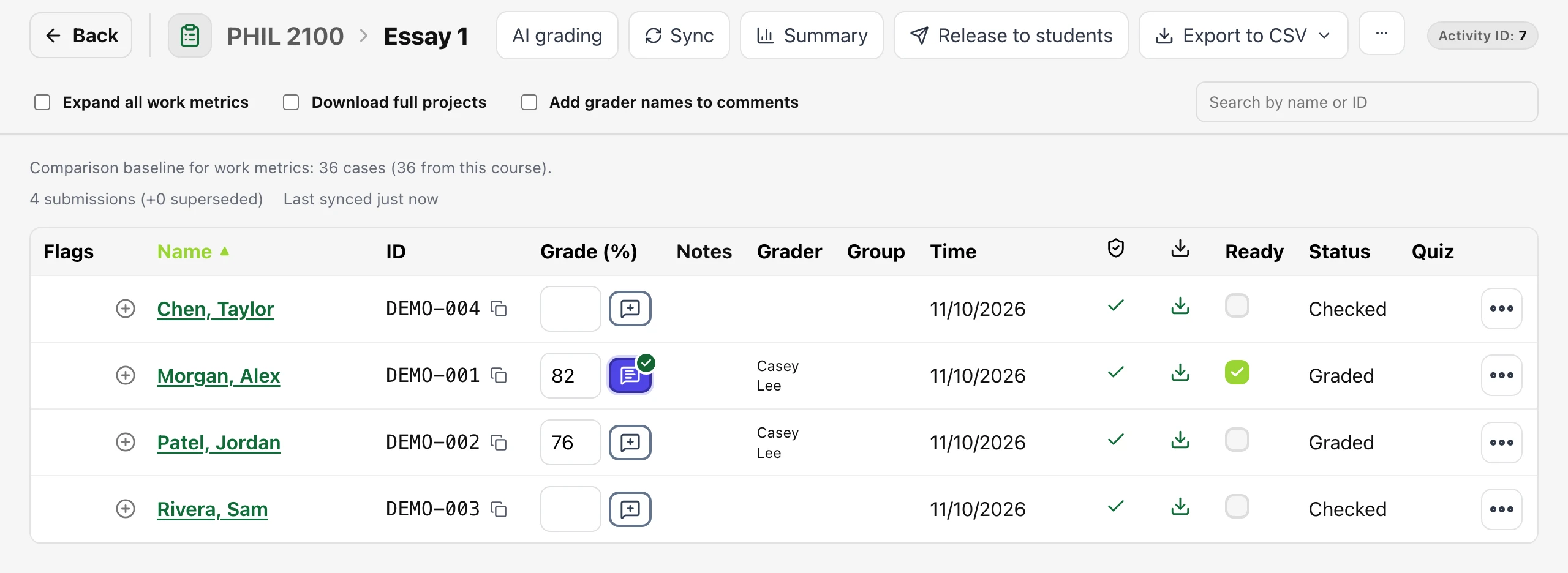
Allow extra time on the first opening
The first load can take longer while MATCHA retrieves submissions and checks their integrity. Project files can be large, and a fast, stable internet connection helps with downloads. Allow the initial download and verification to finish; subsequent visits are usually quicker because much of the work is already available locally. Check the displayed status or error message if progress appears to stop.
If students submitted .mcha files outside MATCHA Cloud, use Instructor → Open project for grading instead. The work-history and annotation tools are still useful, but the shared submission list and release workflow described here apply to Cloud submissions.
2. Review the work process
Click the + beside a submission to expand its work metrics. Submissions with flagged metrics or other issues expand automatically. You can also select Expand all work metrics to compare submissions without opening each row.
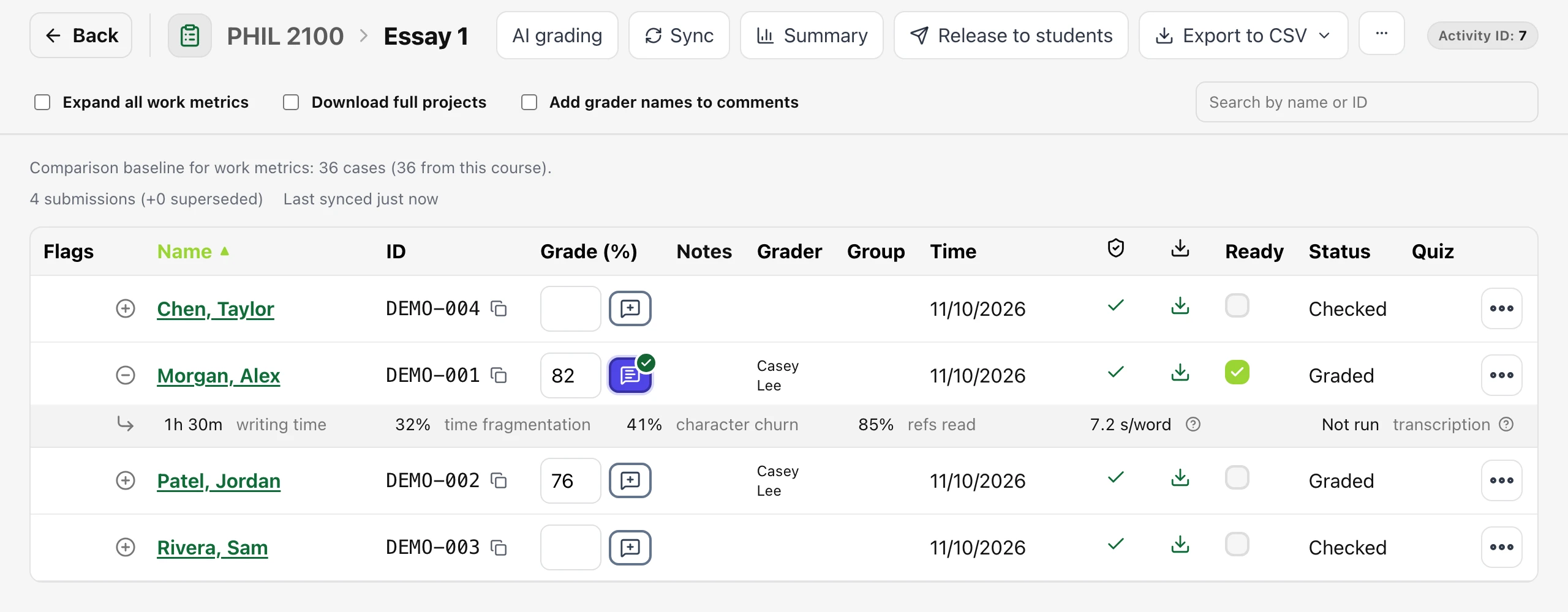
A submission opens on its Project History Analysis. This provides a more detailed account of writing, revision, reading, and integrity information. You can also reach the analysis through History → Analysis.
Read the metrics in the context of your assignment and the student's work. Low values are a reason to look more closely, not proof of misconduct. Set expectations for reading, note-taking, and revision in advance, and use the work record as part of your stated assessment criteria.
For advice on using process evidence in assessment, see How to evaluate submissions and prevent AI misuse. For definitions and interpretation of individual metrics, see Project History Analysis Explained.
3. Add grades and feedback
Open the student's text and select a passage, then right-click for comment and highlight options. To insert an in-text comment, you can also use ⌘ Option C on Mac or Ctrl Alt C on Windows.
In-text comments save automatically as you work. You do not need to submit each comment separately. These are still draft annotations: saving them is separate from syncing with other graders and releasing them to the student.
Enter a grade and add a general comment using the controls at the top right of the open submission, or use the grade field and comment button in the submission list. Use Save feedback in the general-comment dialog to apply changes made there.
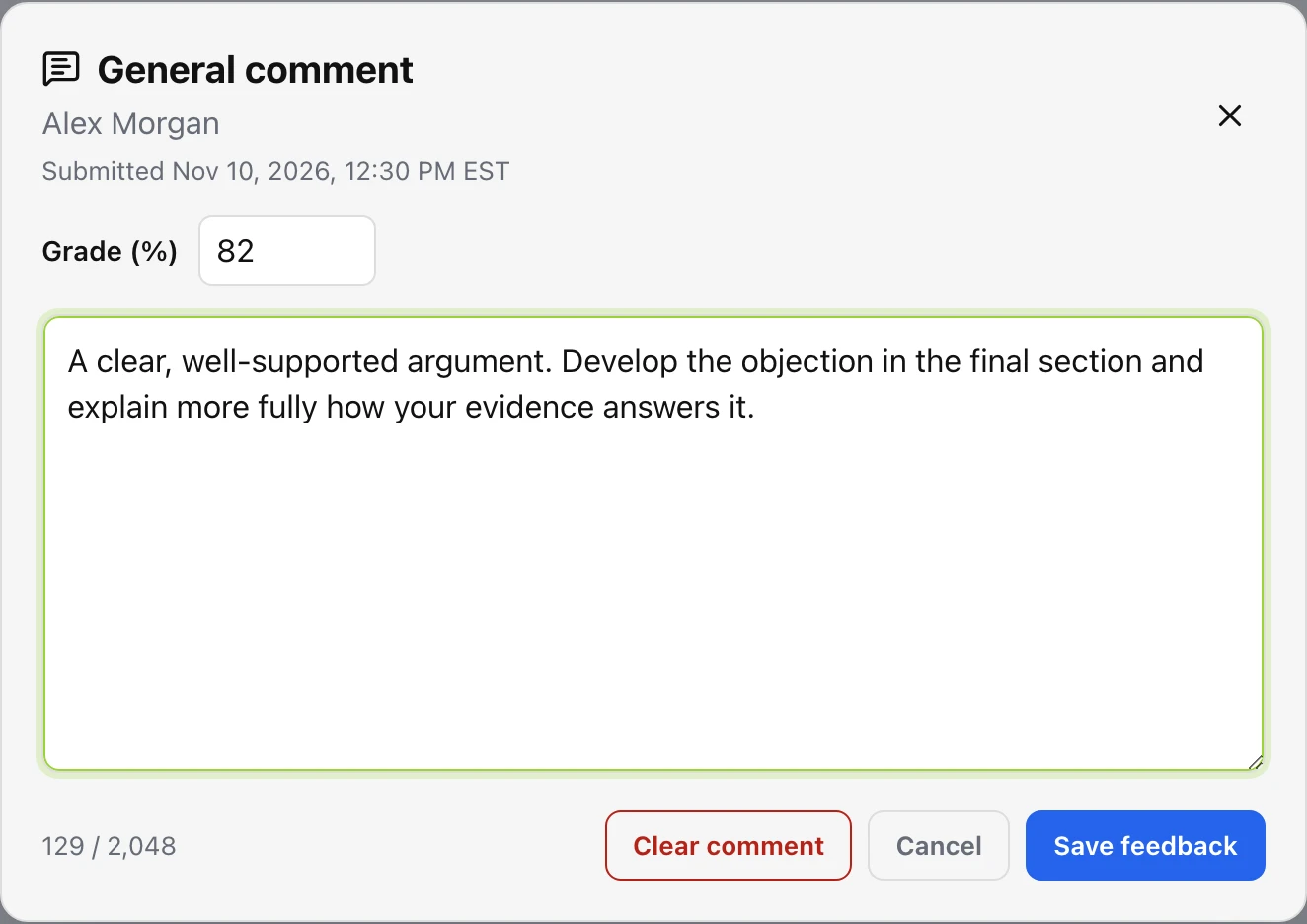
If the activity uses a rubric, grade through the Rubric tab or button; MATCHA calculates the total from the rubric. See Setting up grading rubrics for assessment, saving, and review instructions.
4. Explore a replay
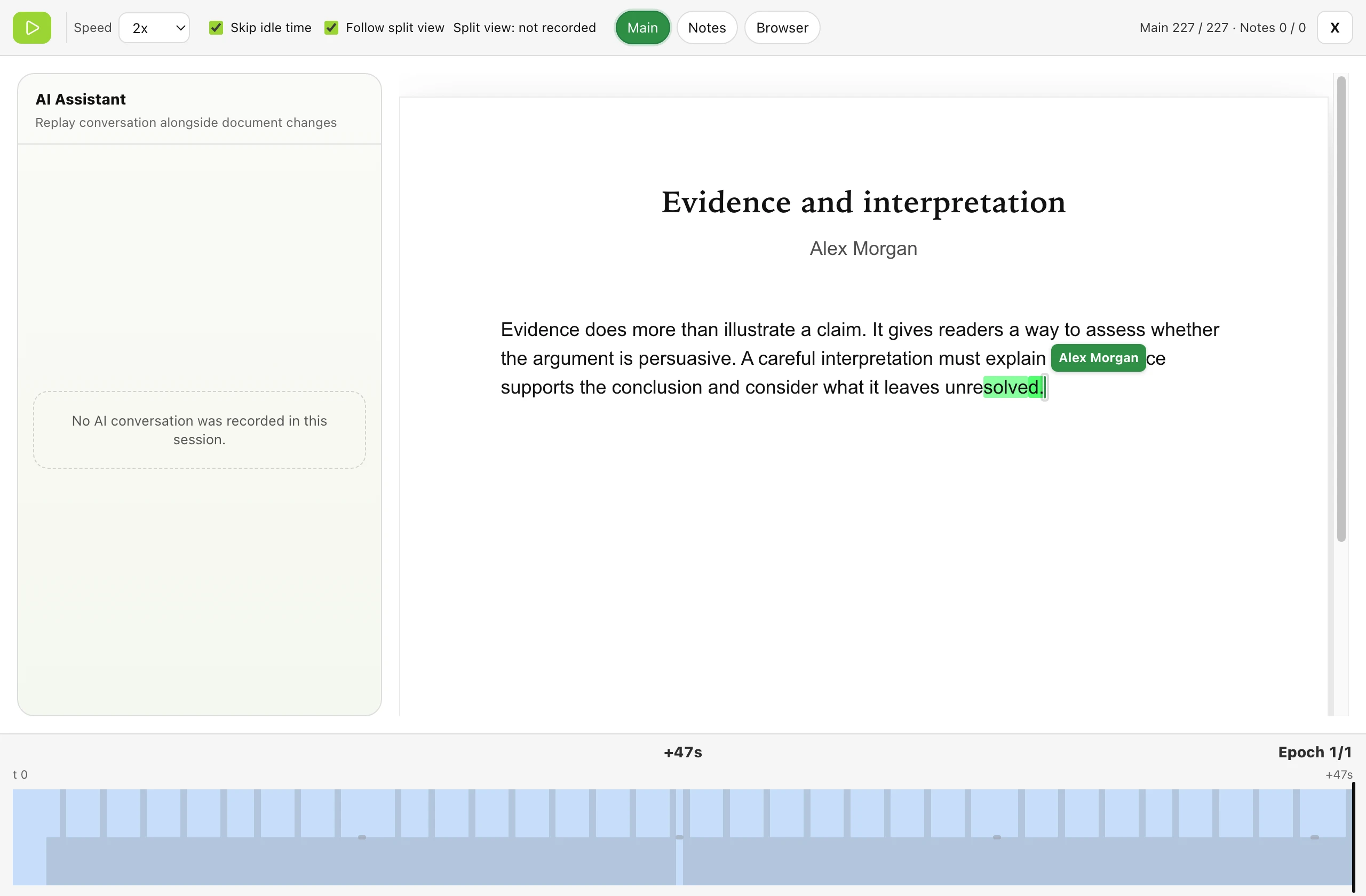
Choose History → Replay in an open submission to explore the recorded work process. Replay availability depends on what the activity recorded and your access to that history. If MATCHA asks for approval or a full-project download, follow the prompt.
- Use the play button, speed control, and timeline to move through the work.
- To investigate a particular passage, click its text in the replay. MATCHA jumps to just before that text was written.
- Use Skip idle time to move past inactive intervals.
- Leave Follow split view enabled to see the recorded panes side by side when the student used split view.
5. Grade as a team
The Sync button both fetches new submissions and synchronizes grading work between graders. Use it when starting a grading session, when handing work to another grader, and before the final release. Check that synchronization finishes successfully.
Several people can grade the same activity at once. Divide up the submissions so that each person works on a different student. MATCHA shows when another grader has a submission open and warns you before you open it too. This is a warning, not an absolute lock: Open anyway can lead to conflicting changes. Normally, cancel and wait for the other grader to close and sync the submission.
6. Review and release feedback
- Finish reviewing the grade, general comment, and in-text annotations. Close the submission and sync.
- Check Ready for each submission you want to release. Leave unfinished or unreviewed work unchecked.
- Choose Release to students and review the confirmation. The batch release includes only submissions marked ready.
- Wait for the result and resolve any errors. For LMS courses, also check the delivery status; initiating a release is not the same as successful LMS delivery.
For a single submission, the row's … menu also offers Release to student. This is an explicit individual release action, separate from the Ready selection for a batch. Use it to republish feedback after a correction.
Feedback availability depends on the activity's settings. If students should receive your in-text comments, make sure the release includes the project feedback copy. In an LMS activity, check the Attach project copy with grade option before releasing.
7. OWL and student access to feedback
For courses accessed through OWL, Release to students sends the grade and general comment to OWL. The annotated feedback copy is available through the student's MATCHA project when it is included in the release.
To retrieve it, students reopen their submitted project in MATCHA, go to the Submission tab, and choose Get feedback (labelled Check for feedback in some versions). They can then open the downloaded Feedback copy to read the in-text comments.
Students in courses that use MATCHA directly can also retrieve released grades, general comments, and available feedback copies from the Submission tab. Remind students to check there after you announce that feedback has been released.